Zaprite offers users the ability to connect their Casa Vaults by providing a Wallet Descriptor. This enables users to accept bitcoin payments directly to their secure multisig vaults.
The following guide outlines the instructions for exporting your Wallet Descriptor for a Casa Vault and connecting it to your Zaprite Checkouts. If you are not yet a Casa customer, head over to casa.io to check out their product offerings.
Export Your Wallet Descriptor
The first step is to export your Wallet Descriptor for your Casa Vault. Casa’s Support website has an article outlining how to find and export your Wallet Descriptor.
Wallet Descriptors for Sovereign Recovery
https://support.casa.io/knowledge/wallet-descriptors
Connect your Wallet to Zaprite
The next step is to add your wallet to Zaprite. Navigate to the Connections screen and then click the Connect button under the Casa card.
If you already have a Casa Vault connected, you can click Settings, then click [ + New Connection ] from the dropdown menu.
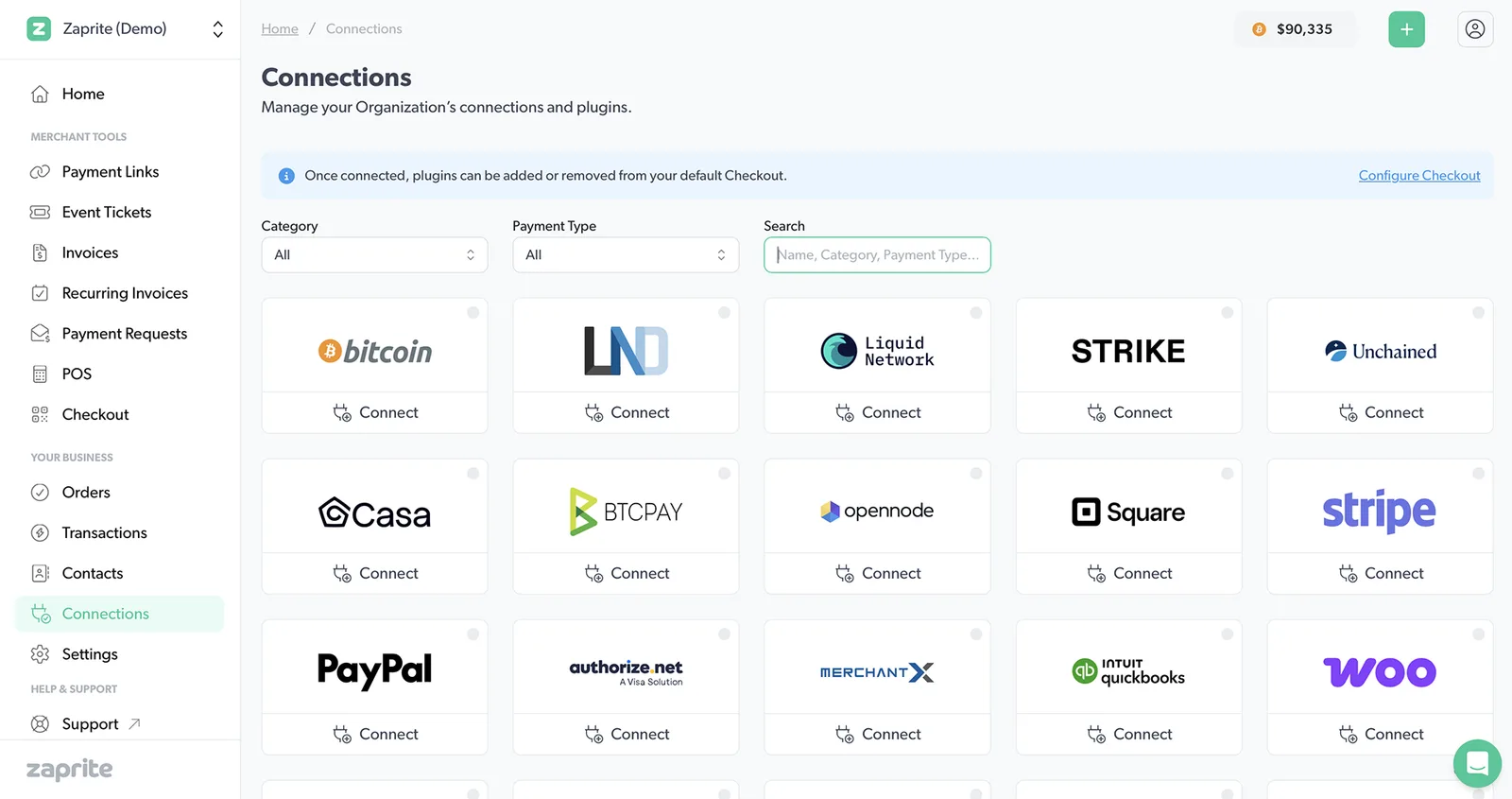
Connect a Casa Vault to Zaprite.
You will be prompted to enter some information about the wallet:
- Label: Add a custom label to identify this Vault within Zaprite. This will not be visible to your Customers. Example: ‘Casa Vault #1’ or ‘Casa Business’
- Wallet Descriptor: Paste your Wallet Descriptor here. This will auto-generate the first three receive address for the wallet in the Wallet Validation section at the bottom of the form.
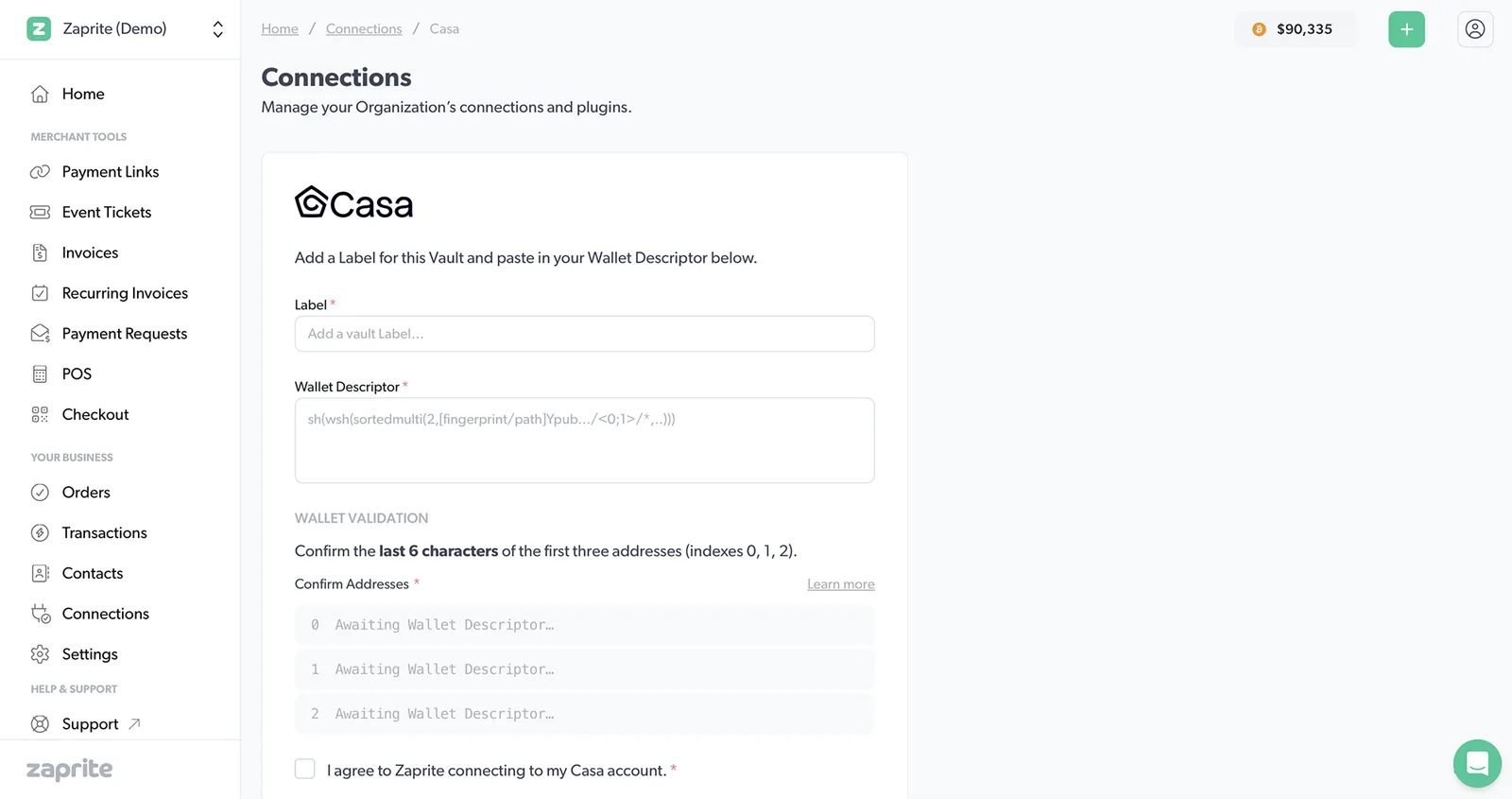
Adding your Casa Vault information to Zaprite.
Once you have this information entered, the final step is to validate the wallet by confirming if Zaprite has generated the correct receiving addresses.
Wallet Validation
To validate the wallet connection you can use the first three addresses shown in the same JSON export that you sourced the xpub above. Note the last 6 characters of the address and then return to Zaprite and enter those characters in the field provided.
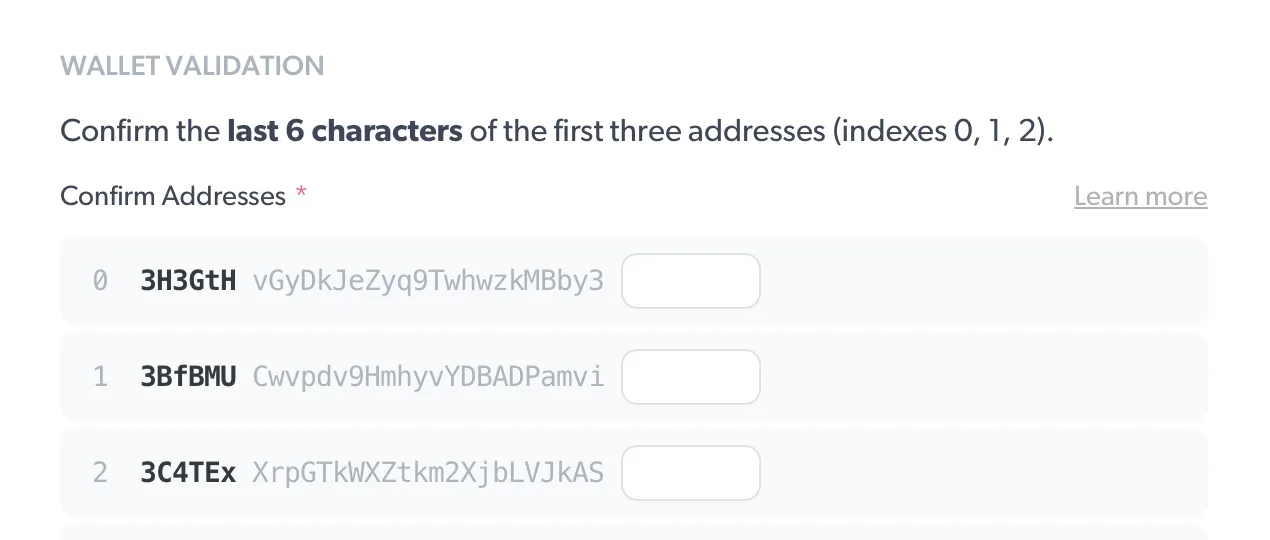
Validate your Wallet Descriptor by confirming the first three receive addresses.
Click Connect to submit the wallet information. If the addresses match, your Vault will be successfully connected and available for use within Zaprite.
Wallet Settings
Once you have validated and connected your Casa Vault, Zaprite will generate and list the first 20 addresses for viewing.
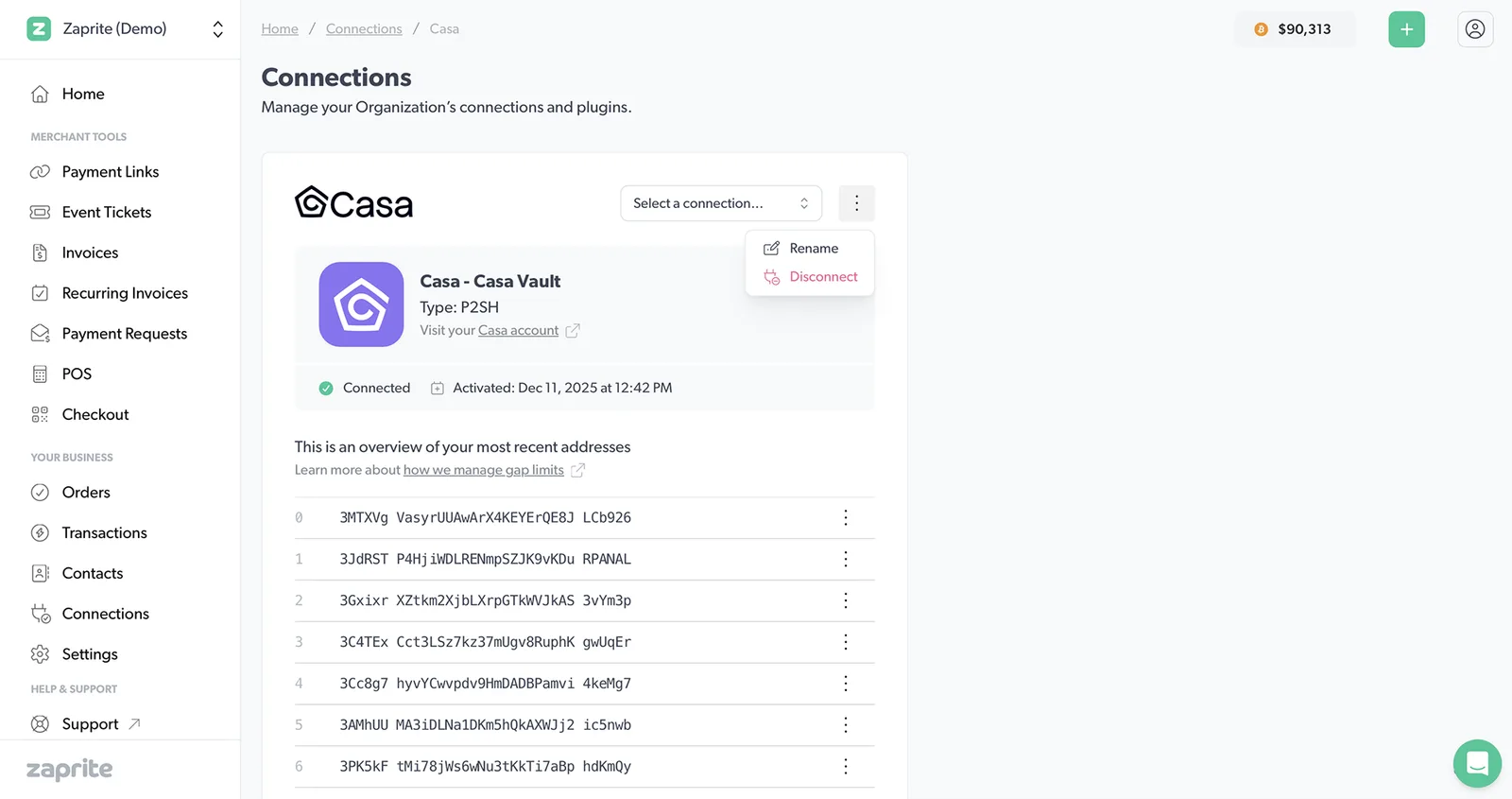
After successfully validating a wallet, the first 20 addresses are displayed.
This list shows which addresses have been Used, Reserved or Locked.
- Used: The address has received funds and will not be used again.
- Reserved: The address has been shown on a Checkout and is temporarily reserved for a
PENDINGOrder. - Locked: You have permanently locked the address for use outside of Zaprite (for example, in a consolidation transaction). Zaprite ignores transactions received to locked addresses.
Checkout Settings
Now that you have your Casa Vault connected, you can choose to set this as your preferred Bitcoin payment method for your default Checkout.
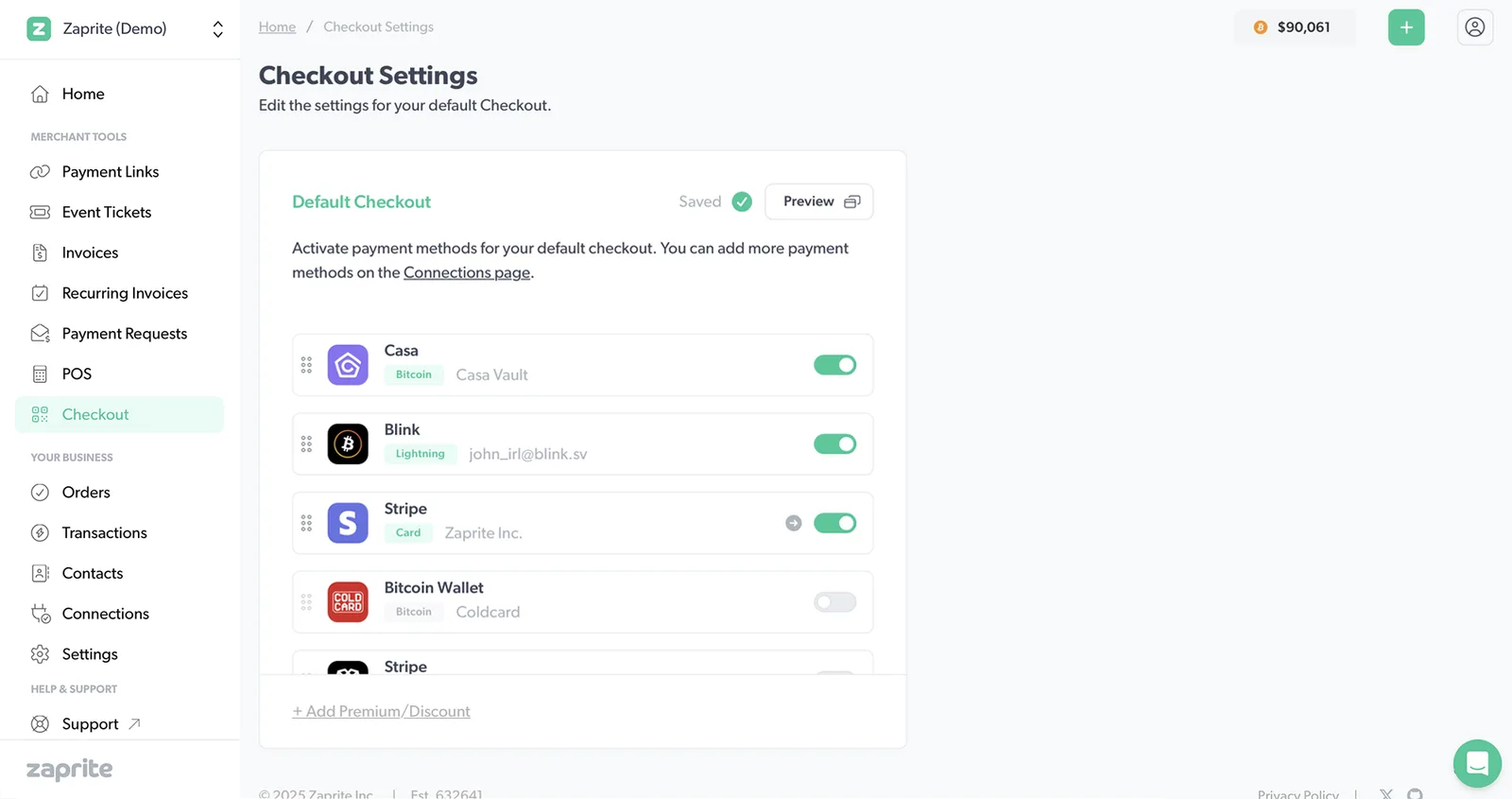
Setting your new Casa Vault connection as the preferred Bitcoin payment method on your Checkouts.
Navigate to Checkouts on the main Zaprite menu. Toggle on the new wallet you just connected and Confirm and then Save the settings for your Checkout. When this wallet is in use, Zaprite will derive a new unused address for each Customer payment. You can always override the active payment methods on individual Checkouts for Invoices, Payment Links, Event Tickets, and API Orders.
Further Information
Help & Support
If you run into any issues connecting your Casa Vault, or have general questions about using Zaprite, feel free to reach out at https://help.zaprite.com.