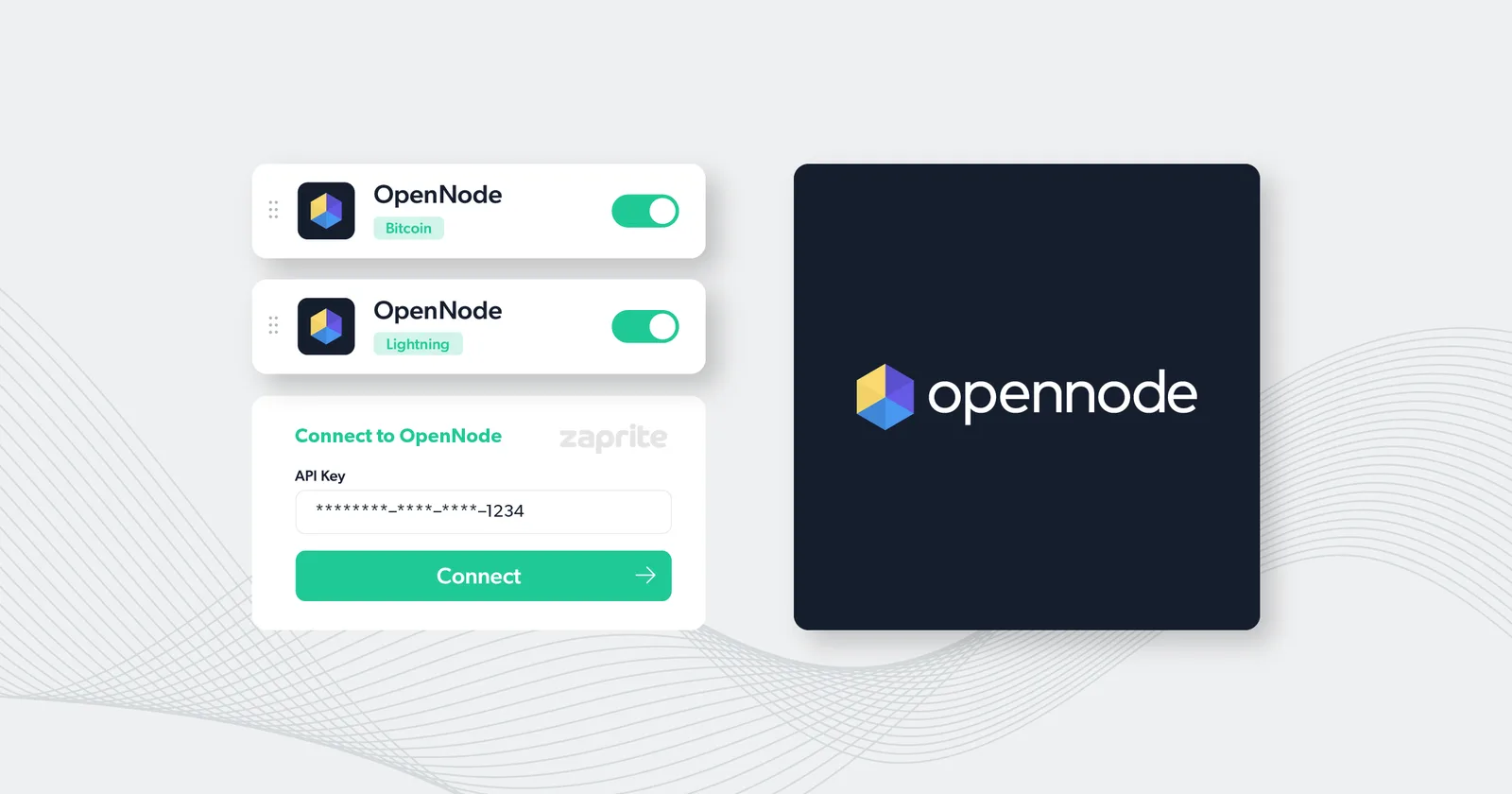
Connecting an OpenNode account to Zaprite is easy. Get setup with Bitcoin onchain and Lightning payments in minutes.
You can easily connect your OpenNode account and offer your clients the option to pay in Bitcoin onchain and Lightning on your Zaprite hosted Checkouts.
The following is a short guide on how you can connect your OpenNode account using an API Key.
Step 1: Activate OpenNode
The first step is to activate the OpenNode connection for your Organization. Simply visit the Connections page and click the ‘Connect’ link under the OpenNode card.
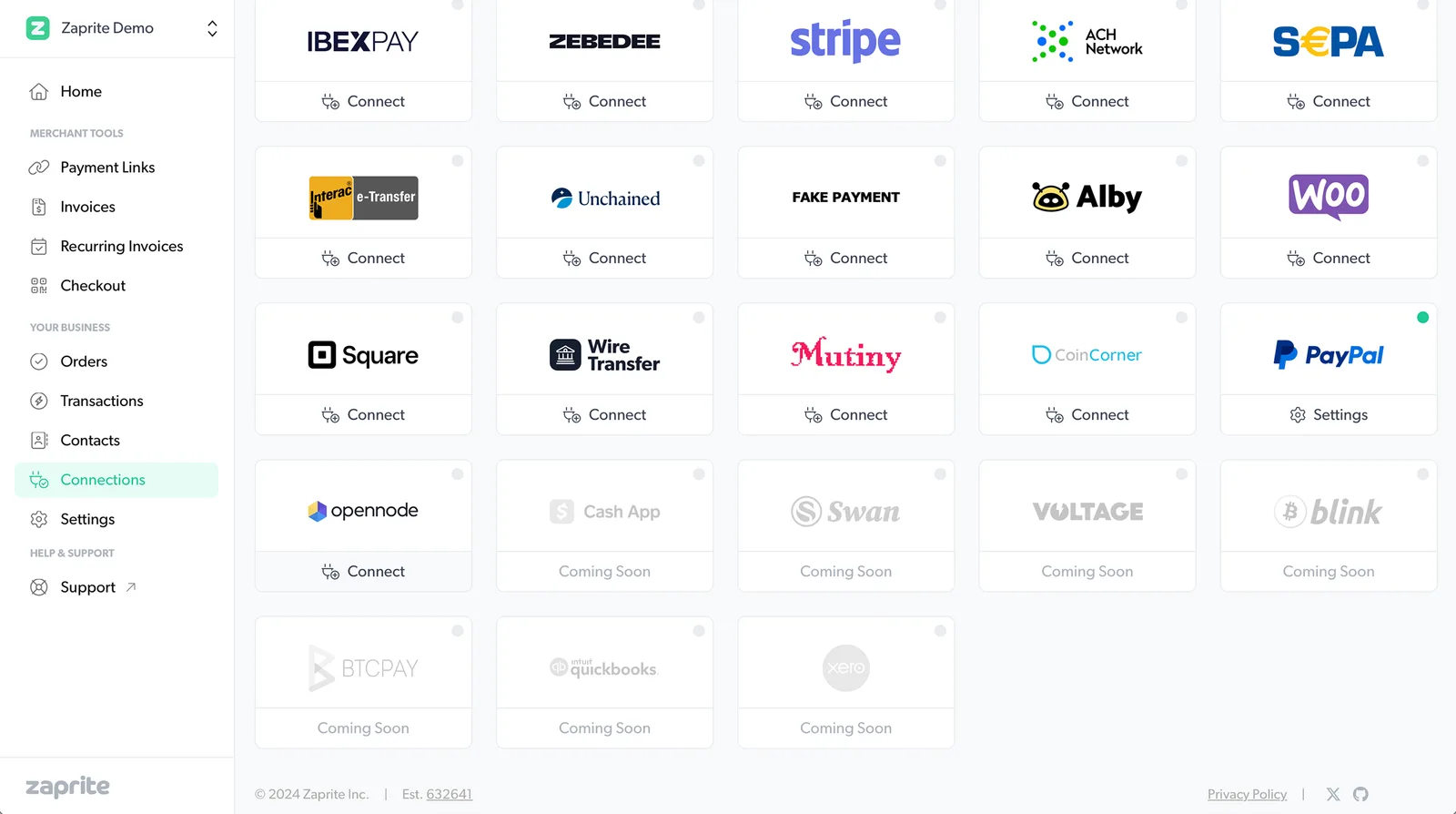
Activate the OpenNode connection in your Zaprite account.
Once activated, you will be redirected to the configuration screen to add your connection information.
Step 2: Configure your connection
The next step involves adding your OpenNode API Key.
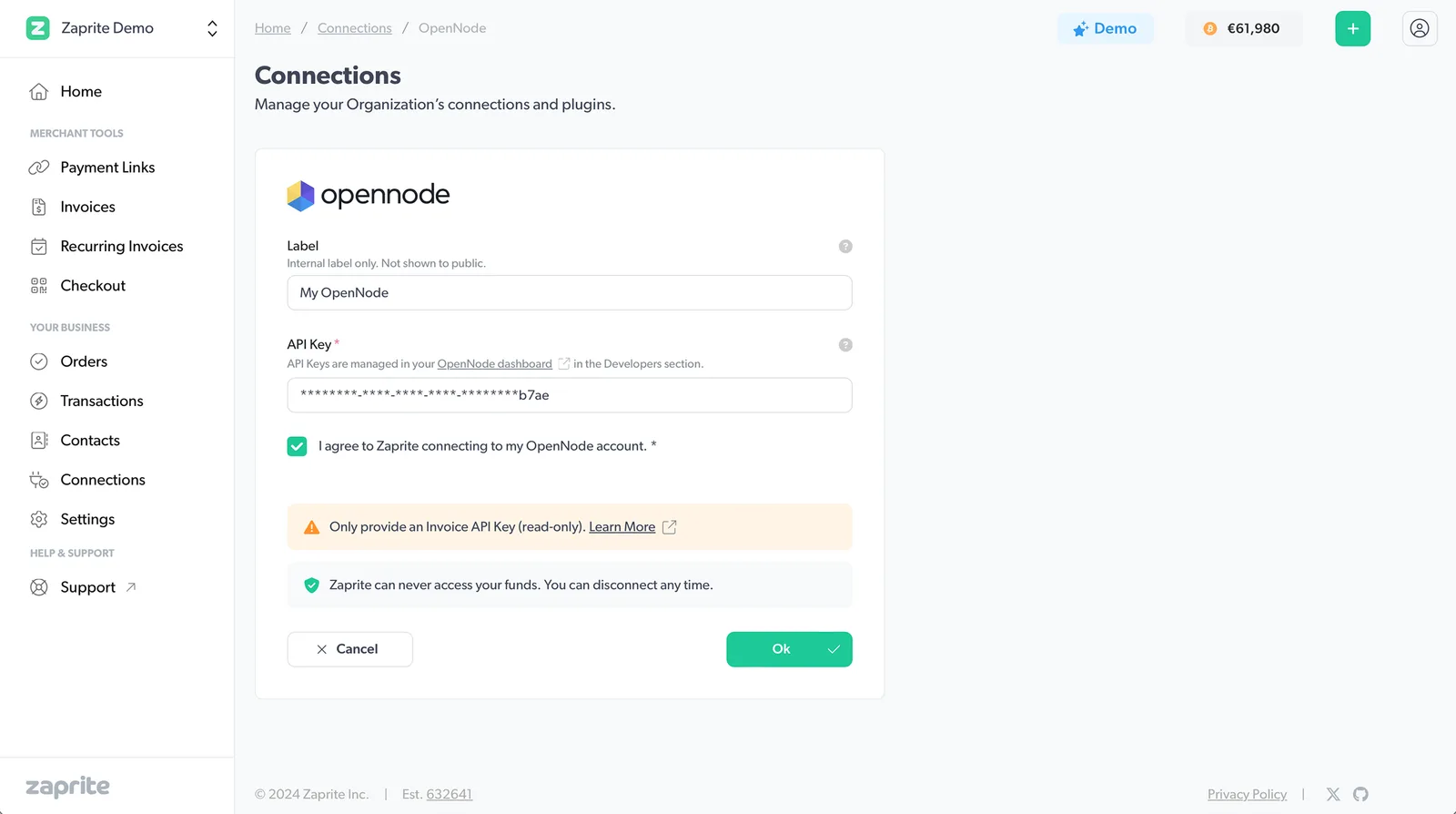
Add your OpenNode API Key to your Zaprite account.
You can find this information by logging into your OpenNode account and navigating to the Developers tab in your account dashboard.
API Key
Zaprite only needs an Invoices Key. This ensures that we can only generate receive onchain addresses and lightning invoices, without having access to your funds.
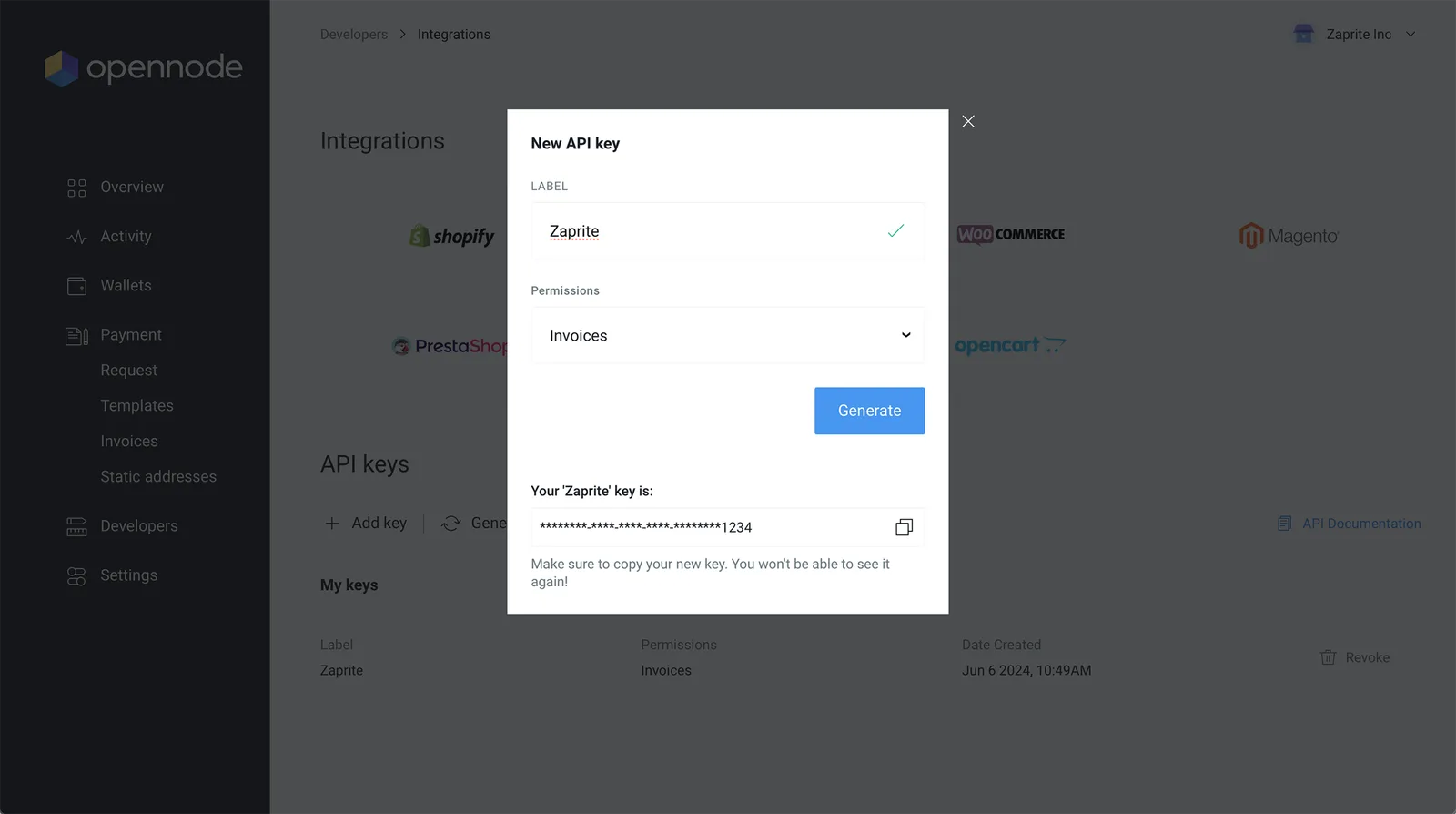
Creating a new ‘Zaprite’ Invoices API Key.
Click the Copy button next to your new Invoices API Key and paste the key into the API Key field on the Zaprite OpenNode connection page.
When ready, click the Connect button to finalize the connection and be redirected to the OpenNode Settings page.
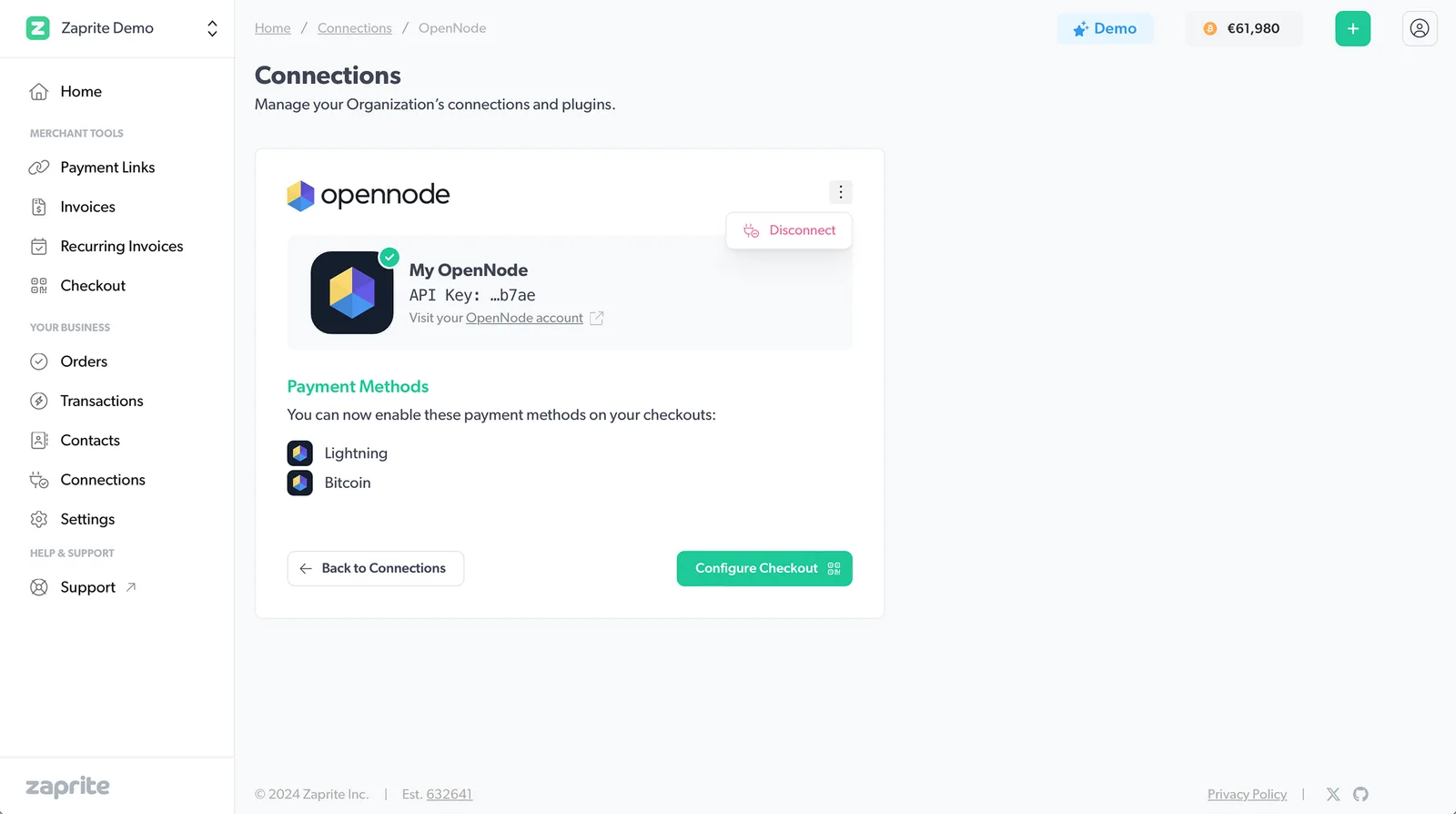
Your OpenNode account connection summary.
You can Edit or Disconnect your OpenNode account connection at any time. If disconnected, the information will be removed immediately from our database. This will not delete any associated Transactions, which will remain in your Zaprite account.
Step 3: Enable OpenNode on Checkouts
Now that you have your OpenNode account connected, you can enable Bitcoin and/or Lightning payments on your Zaprite Checkouts. To edit your Default Checkout settings, click the Configure Checkout button on the OpenNode Settings screen, or click the Checkout button on the main navigation.
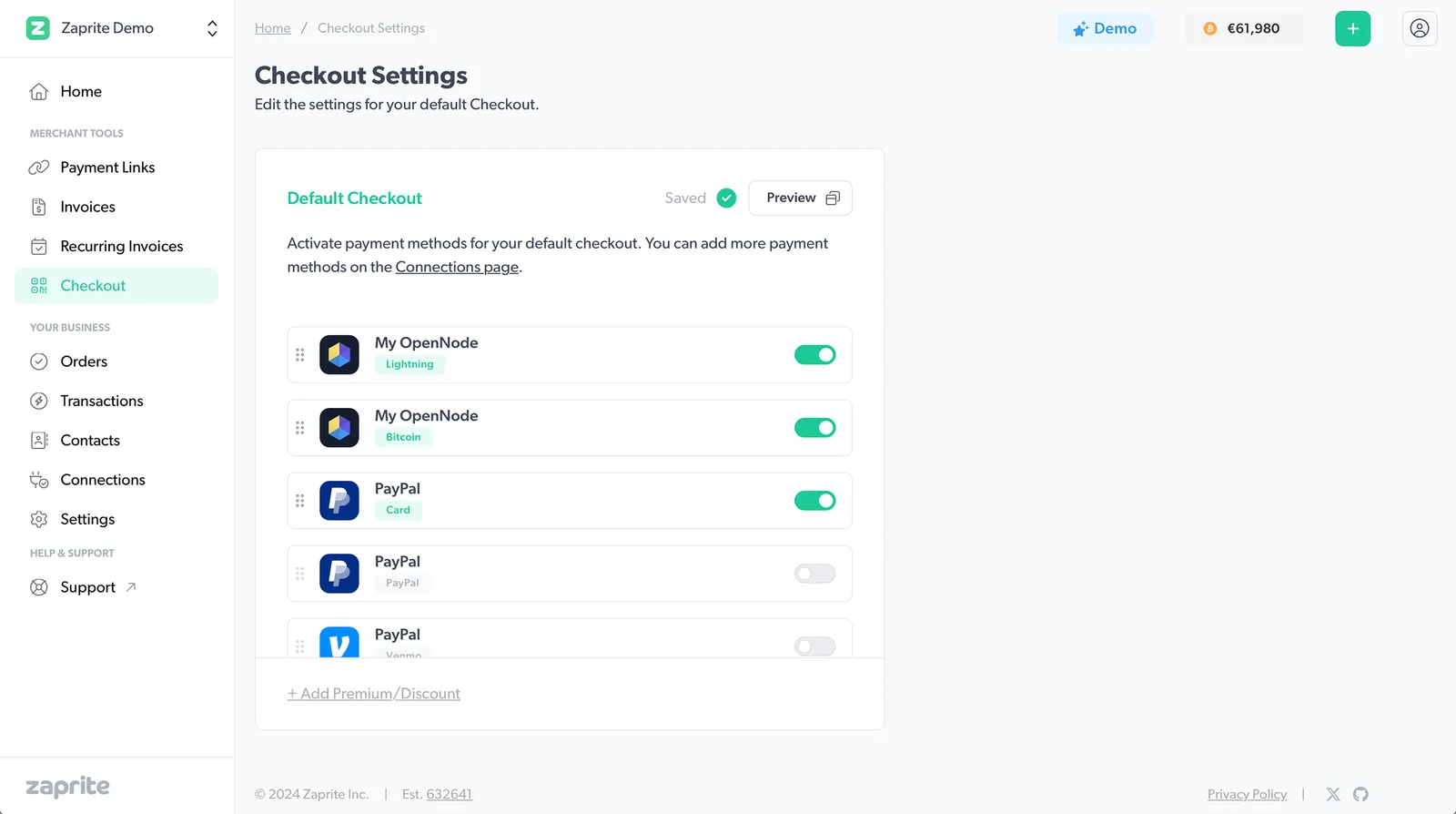
The new OpenNode payment methods available on your default Checkout.
When your customer visits your Checkout and clicks the Bitcoin or Lightning button, Zaprite will automatically request an onchain address and/or a lightning invoice from your OpenNode account, using the live BTC rate at the time. When the Order is complete, you will receive an email notification with the payment details and the payer will receive an email receipt.
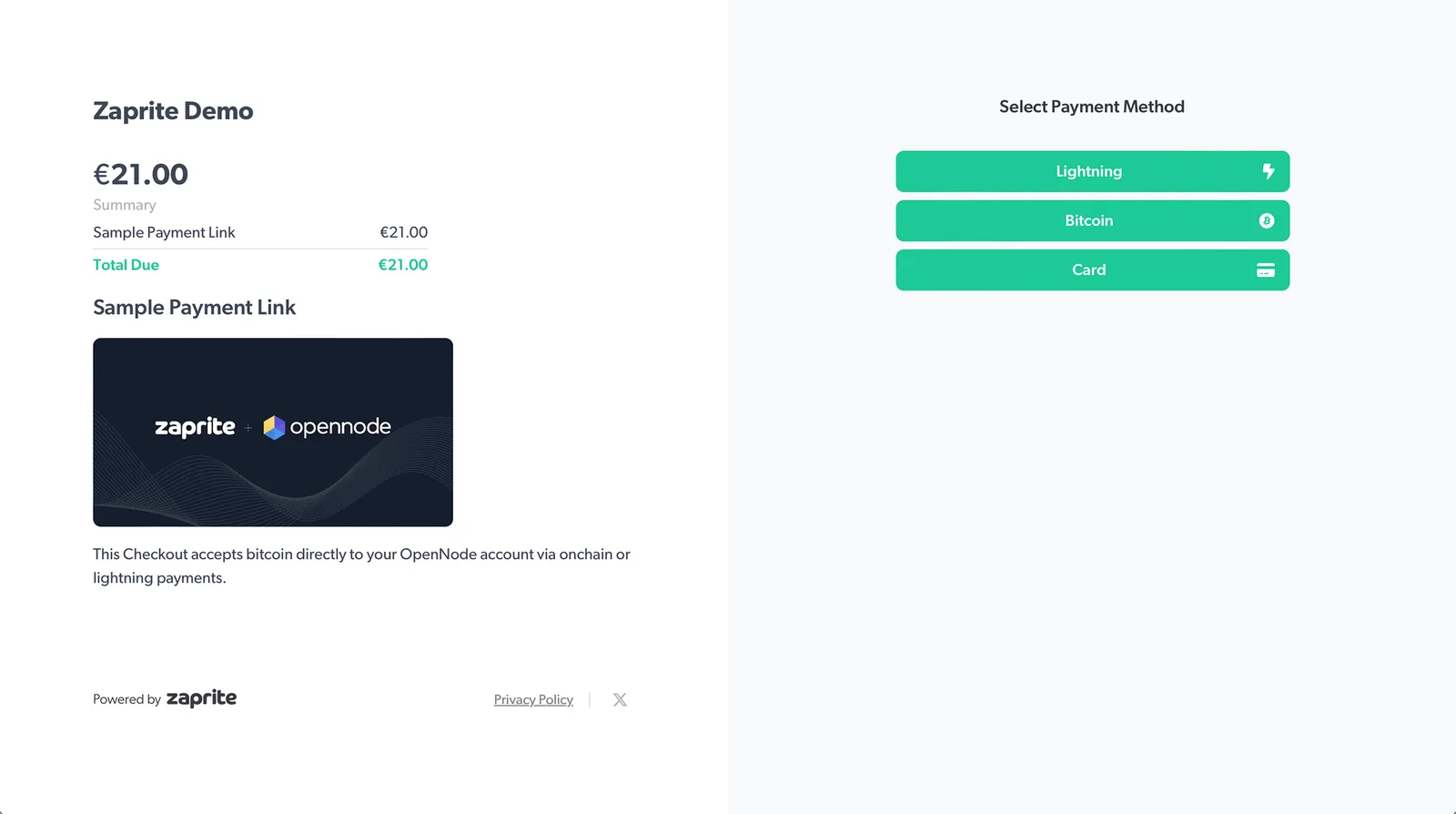
Zaprite’s hosted Checkout showing your OpenNode payment options to your customer.
Success!
That’s it! You should now have your OpenNode account successfully integrated with Zaprite, enabling Bitcoin onchain and Lightning payment options on your Zaprite Checkouts.
All Transaction information can be viewed on the Transaction page in your Zaprite account, as well as directly within your OpenNode account.
More Information
A video tutorial is available on our YouTube channel.
Help & Support
If you run into any issues connecting your OpenNode account, or have general questions about using Zaprite, feel free to message us or Submit a Request at https://help.zaprite.com.