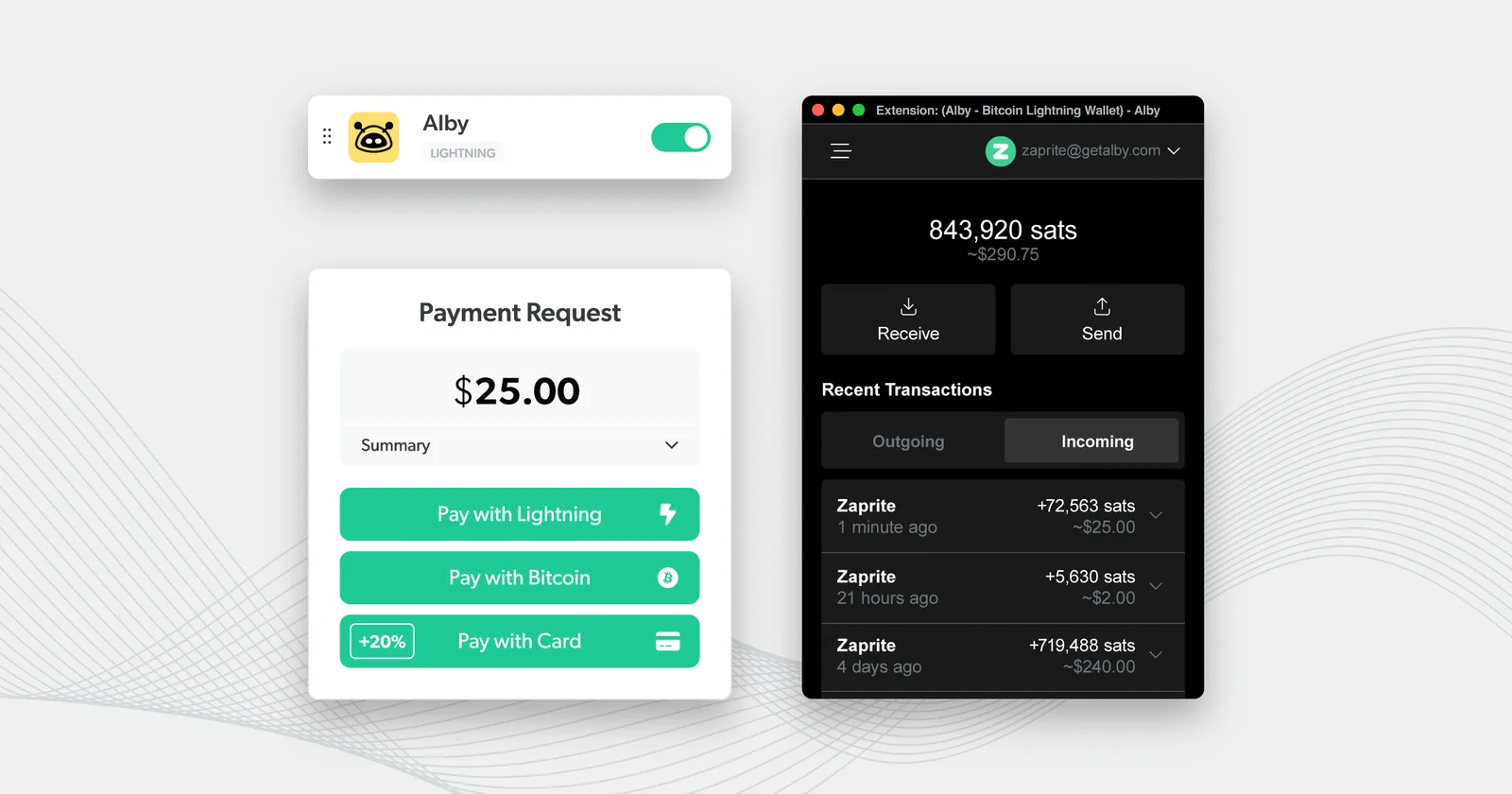
Zaprite offers the ability to connect your Alby wallet and receive payments directly into your Alby Lightning Address. If you don’t have a Alby account, head over to getalby.com to learn more and get started.
Connect your Alby account
The following is a short guide on how you can connect your own Alby wallet to Zaprite to start accepting lightning payments through your Alby Lightning Address.
Step 1: Activate Alby payments
The first step is to activate the Alby plugin. Simply visit the Connections tab and click the ‘Connect’ link under the Alby card.
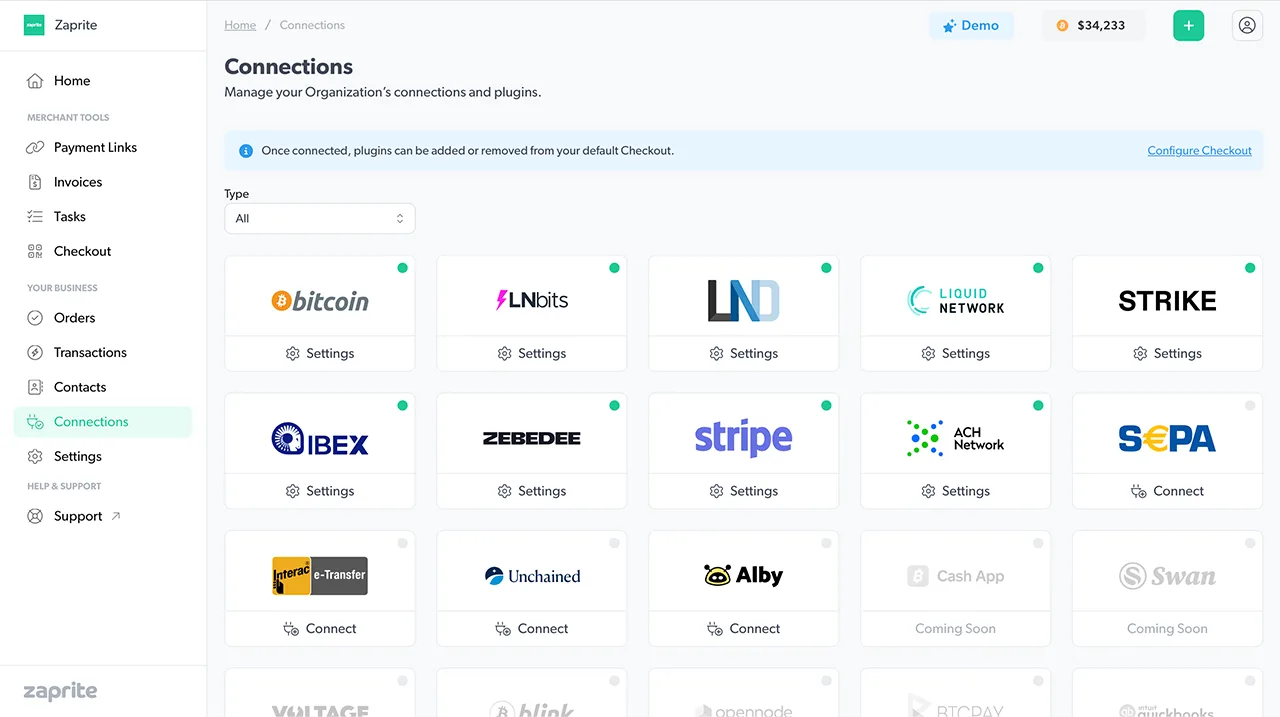
Activate Alby payments from the Connections page in your Zaprite account.
Once activated, you will be brought to the ‘Settings’ screen to configure your connection.
Step 2: Configure your connection
The next step involves adding your Alby Lightning Address username. You only need to enter your username. Do not enter the last part of the Lightning Address (@getalby.com).
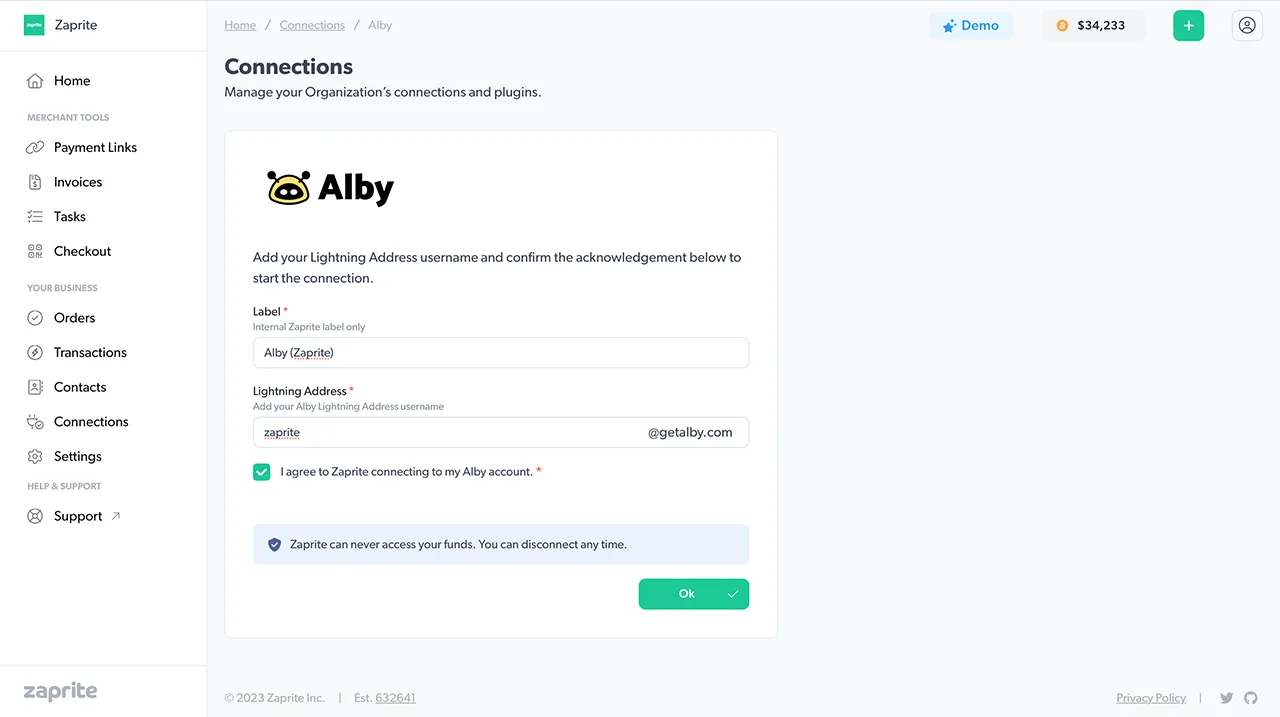
Add your Alby Lightning Address username to your Zaprite account.
Make sure you check the box to agree to the terms, then click [Connect].
If you want to disconnect your account you can simply click the Disconnect button and your Alby account information will be removed from our database. You can reconnect at any time.
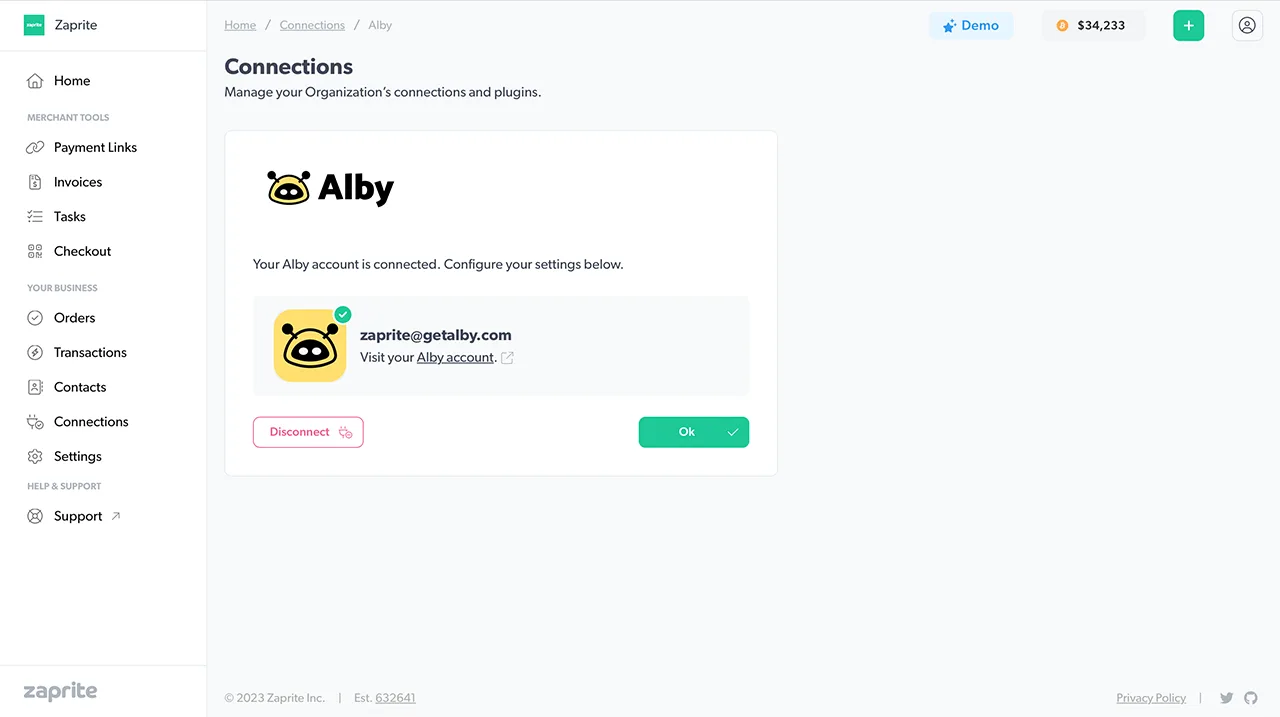
You can disconnect your Alby account at any time.
Step 3: Enable Alby on Checkouts
Now you are free to enable Alby payments on Checkouts for Invoices and Payment Links. Simply click the Alby toggle in the Payment section to allow your customer to pay over Lightning and have funds deposited straight into your Alby wallet. The Checkout settings page includes a similar toggle for enabling Alby on your default Checkout.
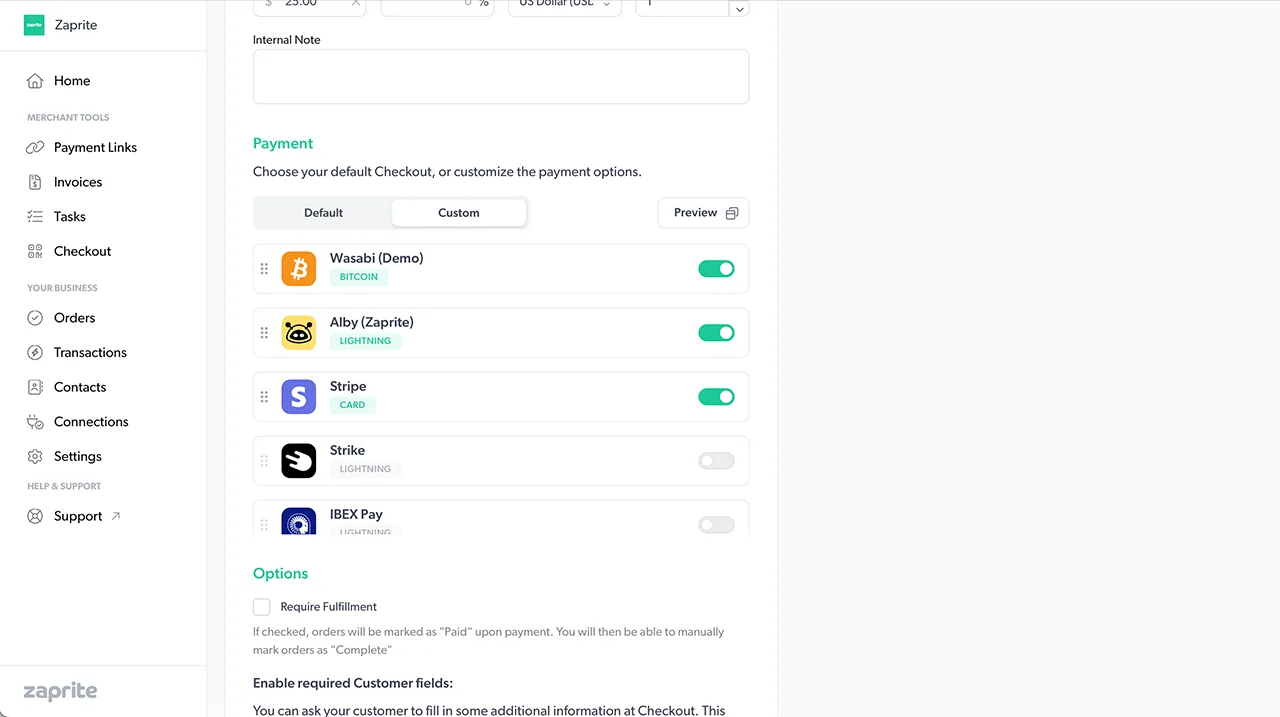
Enabling Alby on a Payment Link.
Your payer will now see a Lightning option on your hosted Checkout page and a QR code will be automatically generated by Zaprite using your Alby Lightning Address.
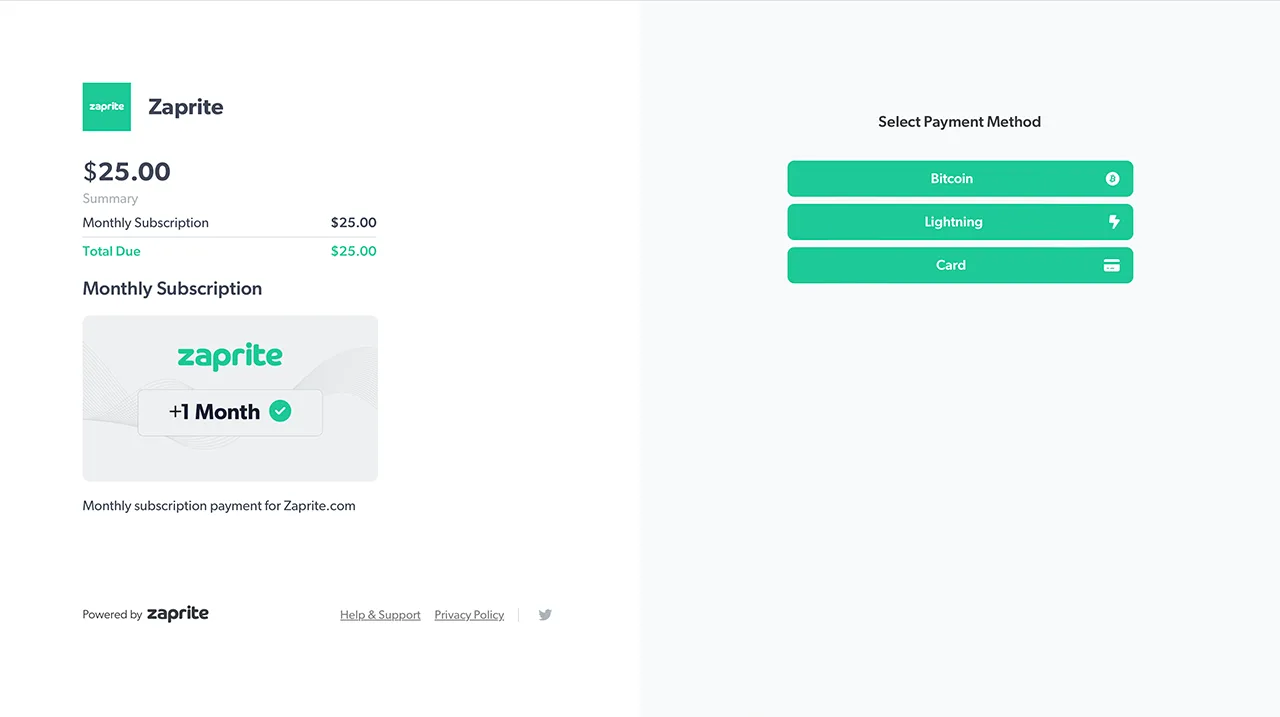
Our hosted Checkout page will now show a Lightning payment option to the payer.
When the Order is paid, you will receive an email notification with the payment details and the payer will be shown an option to download a PDF receipt.
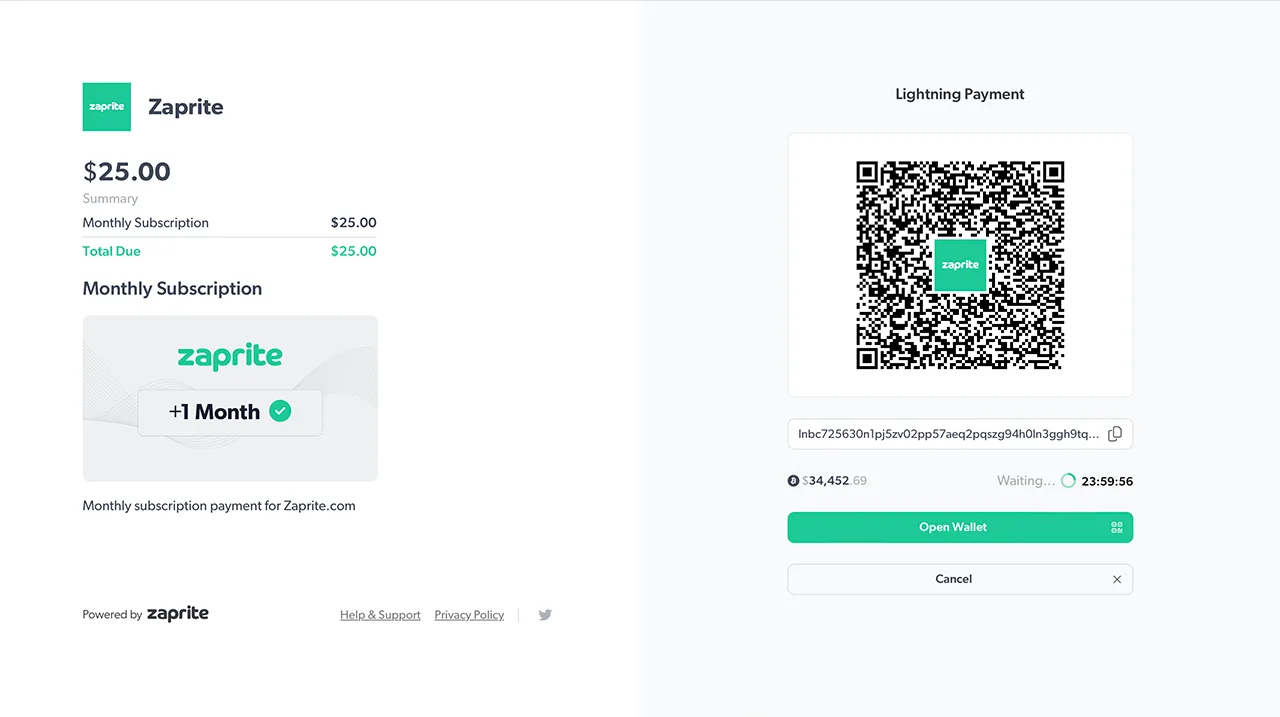
An Alby lightning payment on a Zaprite Checkout..
That’s it! You should now have Alby payment options enabled on your Zaprite Checkouts.
When a payment is detected, we’ll record it in your Transaction history for future accounting and reconciliation.
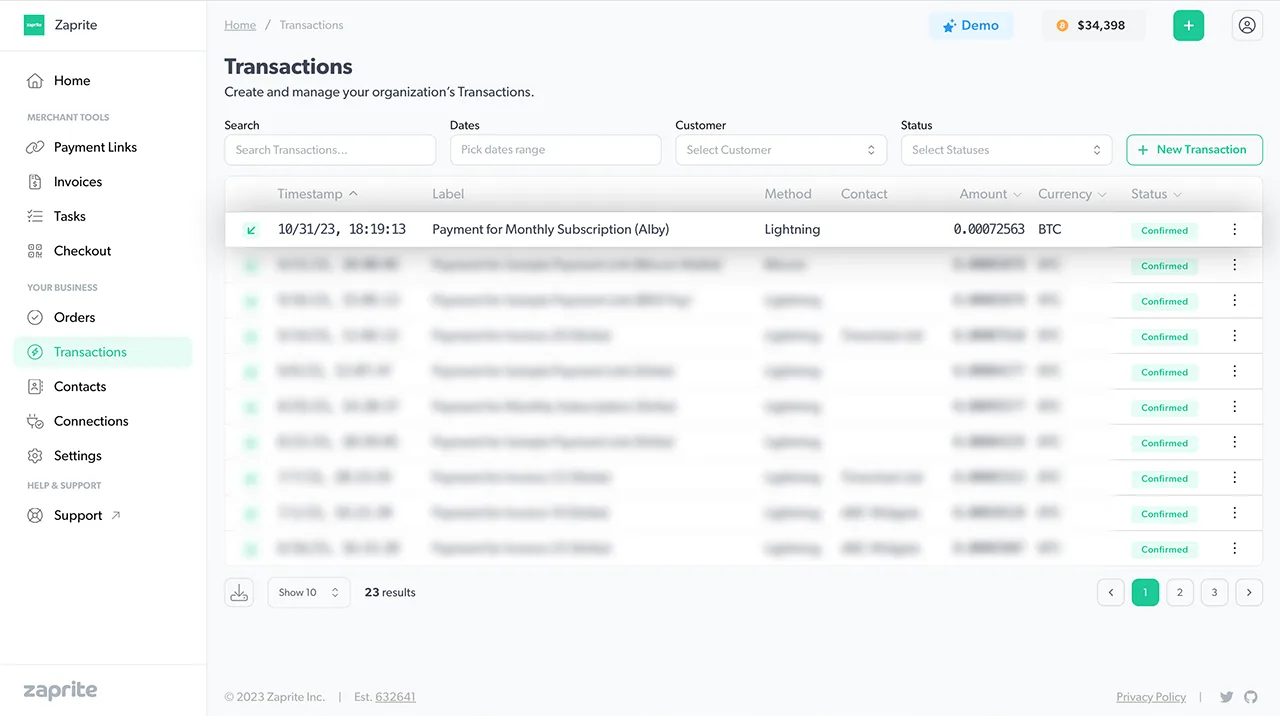
Transaction history is recorded on successful payment confirmation.
Of course, you’ll also see the original Transaction in your Alby dashboard.
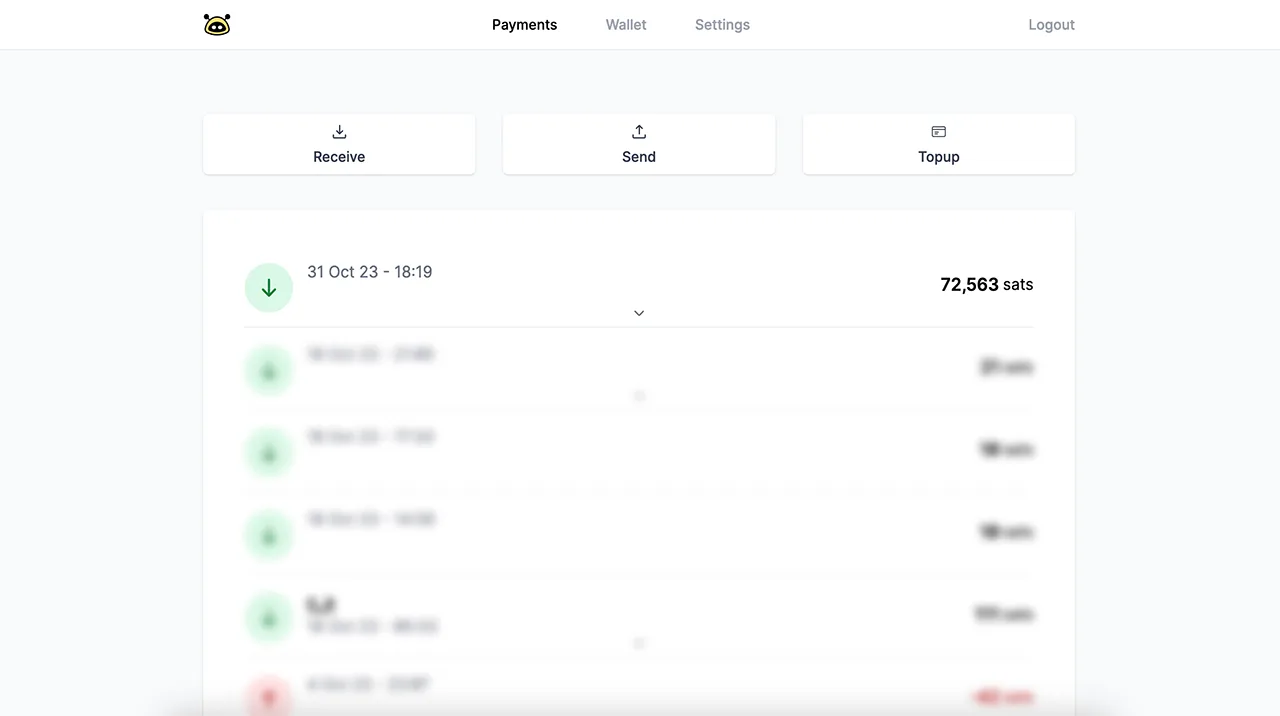
Transaction history in your Alby dashboard.
If you run into any issues connecting your Alby account, or have general questions about using Zaprite, feel free to reach out at https://help.zaprite.com.